Hi-Tech Audio
Professional Audio
CORE FEATURES

User-Defined Database
Customise your database to fit your unique needs
MusicMaster is the only system that lets you decide what kind of information you need to store in your music library. This makes MusicMaster easier to use, quicker to learn, and a perfect fit for every format or programming need.


Custom Database
-
Add song attributes, like tempo, mood or key that give you more options for controlling your mix.
-
Store information about your music you’ll later use to put together a speciality show.
-
Add a link field that opens the artist’s webpage on MusicMaster’s internal browser.
-
Create fields that hold or sync report data from your music research company.
-
Tailor MusicMaster for unique platforms, like music television, podcasting or video streaming.
-
Add reference information for speciality programming, internal projects, mandated reporting, and more.
Each programmer has the ability to build a database designed specifically for him or her. It has helped me better my programming, create a better rotation, and therefore increased my ratings.;
Chayan Ortuno – Program Director, Univision
Make It Your Own
Customise your layout to fit the way you work
Speed up your workflows by only displaying what you need to see. Make it simple as you like, or as complex as you need. You can also save custom profiles for different types of tasks or users.
MusicMaster gives you more freedom to customise than any other system, so you can find a way to work that’s most comfortable and efficient for you.
Custom Layouts
-
Hide and arrange windows and toolbars to maximise screen real estate.
-
Choose and arrange the columns you see in your Library, Clock and Schedule Editor grids.
-
Customise and save different grid layouts for different users or workflows.
-
Create different grids for different tasks, like adding songs, entering research scores, printing a music list, and so on.


Custom Styles
-
Personalise MusicMaster with different Themes.
-
Choose colours and fonts used in the Library and Schedule Editors.
-
Use colour highlights as visual cues when scanning your log.


The Rule Tree
Add layers of control to fine tune your ideal mix
Our unique Scaleable Rules go beyond the rigid pass-fail thinking of the past to give you a wider spectrum of possibilities. You can also turn rules on and off for different times of day, or for different songs and categories.


Creative Control
MusicMaster comes with a toolkit of scheduling rules that open up room for creativity, while still giving you the control you need. With the right combination of rules, you’ll get a fresh and interesting sound from the start with fewer unscheduled positions.
-
Effortless Control:Drag, drop, group, day part, weigh, and turn rules on and off over time.
-
Scaleable Rules: Layer the same rules with different preferences to match your priorities. For example, “Always try to separate Slow songs by three. If you can’t, two is acceptable. But never play them back to back.”
-
Rule Groups:Like a rule tree within a rule tree. Keep your rule tree organised, and create groups of rules that only apply in specific day parts, or when certain criteria are met.
Rule Tree Wizard:
Analyse your library to get recommendations for rule settings. Or, review your last scheduling sessions to find potentially problematic rules.
Optimum Goals TM
Set goals that find the best possible song to play
Other music scheduling systems play the first song that passes all the rules. But what if another available song would have sounded better? Optimum Goals add an extra layer of intelligence, so you can set goals for your overall sound, and MusicMaster will find the best possible song to meet them.

Optimum Goal Scheduling TM
MusicMaster’s Optimum Goals are based on a programmer’s intuition, so when you turn one or more on alongside your rules, you’ll find yourself spending less time editing and massaging the log. They work behind-the-scenes to give you a unique edge in developing a better overall sound for your station.
Some Examples
Optimum Song Rest: Like MusicMaster’s default behaviour, songs that have rested the longest are favoured.
Optimum Radial Spread: Favours songs that have not played recently in or near the same hour and day parts for the best possible rotation patterns.
Optimum Keyword Separation: Calculates the ideal separation of your keywords and favours songs that meet this criteria.
Optimum Rule Performance: Favours songs that are usually more difficult to schedule, so they have a better chance to play.

Most Intuitive System
Turn any idea into reality – without a lot of tinkering
MusicMaster makes it easier than ever to get your ideas on the air. Our intuitive tools help you dial in perfect music rotations, add unpredictable variety, control the flow between music and imaging, create engaging special programming, and more!


Intuitive Programming
Spend your workday getting excited about your station, not frustrated with your computer. MusicMaster’s many powerful tools make it easier than ever to balance your music rotations, add variety, engage your listeners with special programming, and win between the songs with perfectly paired segues and imaging.
Here are just a few of the powerful tools you’ll have at hand:
-
Turnover Analysis:Let MusicMaster do the math for you and show how your songs will plot over time, so you can make adjustments to get the perfect balance and separation.

Dynamic Clock Elements: Add unpredictable variety without creating many different clocks. Instead, use clock elements that change over time in a pattern you specify.


-
Special Sets: Automatically link things you want to play together, like 2Fers, or songs with related imaging. Or, automatically drop in promos for songs coming up later in the hour.

-
Auto Platoon: Keep your station sounding fresh by scheduling a regular exchange of songs between active and resting categories, based on play count or days.
-
Auto Burn: Having a hard time getting your Powers to rotate evenly? Map your spins and then make adjustments that “fix the math” by skipping some plays to restore your ideal rotation pattern.
Analysis and Reporting
Use guided analysis to get the best results possible
MusicMaster has many easy-to-use tools for analyzing your station’s programming. Whether you’re using the data to improve your rotations, adjust your overall sound, or generate required reports like BMI/ASCAP or CANCON, all of the information you need is just a few clicks away.

Analysis & Reporting
-
History Graph: Use this display while reviewing your library or schedule to get a birds eye view of how the selected songs, artists, keywords, or other attributes have played across time.
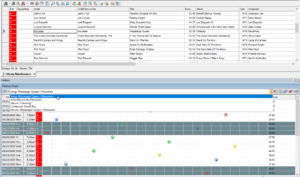
History Browser: Take a closer look at your airplay history to visualize how individual songs have played across different time periods. Print your history or copy it to a spreadsheet program for easy reporting.


-
Special Library and History Reports: MusicMaster includes numerous reports that help you examine your station’s overall content and performance. Run airplay affadavits, examine relative separation, view category turnover and weekly spins, and more. Configure and filter these reports as needed, and then print the results.